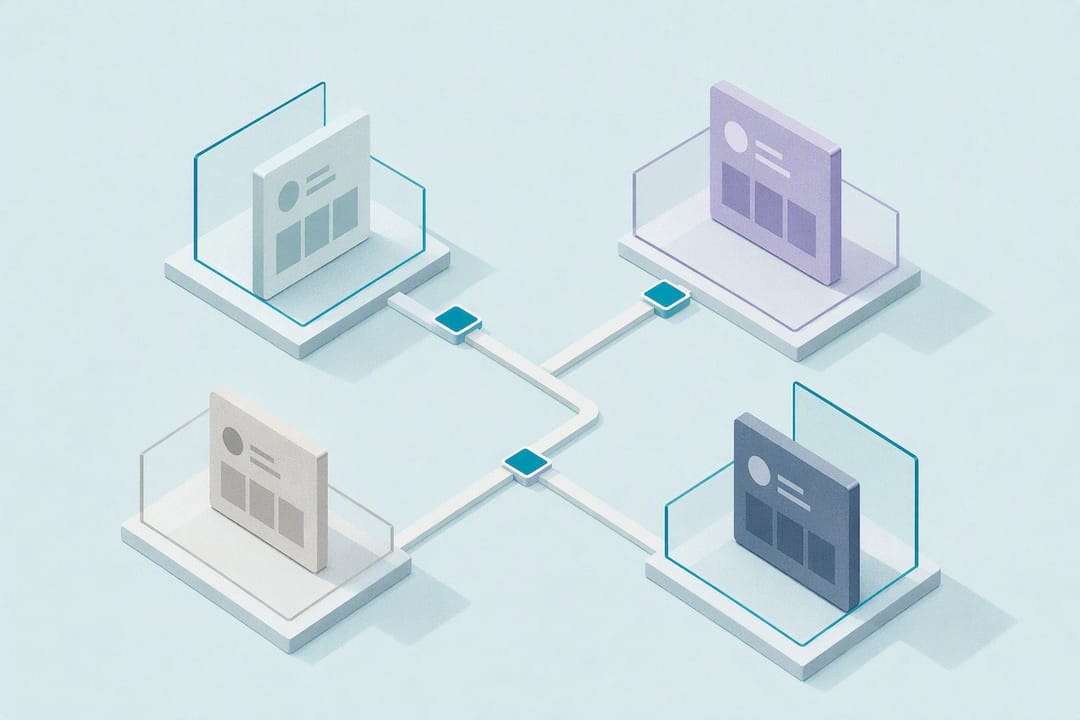
Use Instagram's native multi-account feature for quick switching between up to five signed-in accounts. Once you're past five, managing clients, or running a team, move to a scheduler with a unified inbox or a session-isolation setup that keeps every login separate. The native app wins on speed and cost; dashboards win on scheduling and reporting; session isolation wins on scale and safety for agencies juggling simultaneous desktop logins.
TL;DR:
- The five-account limit for native Instagram switching is a hard ceiling; managing more requires session isolation tools or dedicated workspaces.
- Using batch content production, clear role assignments, and visual cues like color-coding reduces errors and enhances team efficiency.
- Advanced tools like schedulers with unified inboxes, approval steps, and analytics are essential for managing eight or more accounts across teams.
- Browser-based session isolation extensions effectively prevent accidental cross-contamination when managing multiple accounts on desktop.
- Strong security practices, including role-based access, shared password managers, and two-factor authentication, protect accounts from breaches at scale.
Table of Contents
- How Do You Manage Multiple Instagram Accounts in the App?
- Building Workflows That Don't Collapse Under Client Volume
- Which Tools Actually Fit Your Account Count?
- How Do You Scale Past Five Accounts Without Cross-Contamination?
- Keeping Multiple Accounts Secure Without Slowing Your Team Down
- What Goes Wrong Most Often, and How to Fix It
- Why Most Teams Underestimate How Fast Multi-Account Chaos Compounds
- Scaling Beyond the App Limit With EazySessions
- Sources
How Do You Manage Multiple Instagram Accounts in the App?
Instagram's built-in multi-account tool covers most solo creators and small business owners without a single third-party app. You can add and switch between multiple Instagram profiles directly from your profile menu, and the process takes under a minute once you've done it twice.
Here's the actual sequence:
- Open your profile, tap the menu icon, and select "Add account."
- Log in with the second account's username and password, or choose "Add existing account" if you're already logged in elsewhere on the device.
- Switch between accounts by tapping your profile picture at the bottom of the screen (mobile) or your avatar in the top corner (desktop web), then selecting the account you want.
- Use Accounts Center to link accounts under one login, which lets you jump between Instagram and Facebook profiles without re-entering credentials every time.
- Check which account is active before posting. Instagram shows the active profile's avatar in the composer, but it's easy to miss on a small screen.
The catch is the five-account ceiling. Instagram allows up to five accounts signed in simultaneously on one device. You can own or create more than five, but accessing a sixth means logging one out first. That's fine for a creator running a personal account plus a side brand. It falls apart fast for an agency handling eight client profiles.
Desktop and mobile behave slightly differently. On mobile, switching is a single tap once accounts are added. On desktop web, the interface buries the switcher one click deeper, and Accounts Center settings sometimes require a fresh login to sync properly. If you're managing client work, treat the five-account limit as a hard wall, not a soft guideline. Plan your tool stack around it before you hit it mid-campaign.
Building Workflows That Don't Collapse Under Client Volume
Native switching solves access. It does nothing for consistency, and consistency is where most multi-account operations actually break down.
Start by defining purpose, audience, and posting cadence for every account you run, separately. A skincare brand's Instagram and its founder's personal account should never share a content calendar, a tone, or a posting rhythm. Write this down. A one-page brief per account (goal, audience, voice, posting frequency) takes twenty minutes and saves hours of confused Slack threads later.
From there, batch your production. The most reliable rhythm follows four steps: plan, produce, edit, schedule. Plan a week or month of content in one sitting. Produce the raw assets in a single block rather than daily. Edit everything together so captions and visuals stay consistent. Then schedule the batch in one pass. Batching content and running a unified calendar cuts daily friction far more than trying to post fresh, in-the-moment content on five accounts every single day.
Ownership matters as much as scheduling. If more than one person touches an account, assign a clear owner and an approval step before anything goes live. Treating each profile like its own small operation, with defined outcomes and protected access, is a pattern account management specialists consistently recommend for teams running several profiles at once.
A basic playbook keeps everyone aligned:
- One-page brand voice guide per account, covering tone, banned topics, and approved hashtags.
- A shared content calendar showing what's scheduled, who wrote it, and who approved it.
- A weekly quick review checking engagement, comment sentiment, and any flagged content.
- A monthly deeper review comparing account performance against the original goals you set.
Pro Tip: Color-code each account in your calendar tool. When you're staring at twelve rows of scheduled posts, a visual cue saves you from scheduling a client's product launch under the wrong brand name.
Which Tools Actually Fit Your Account Count?
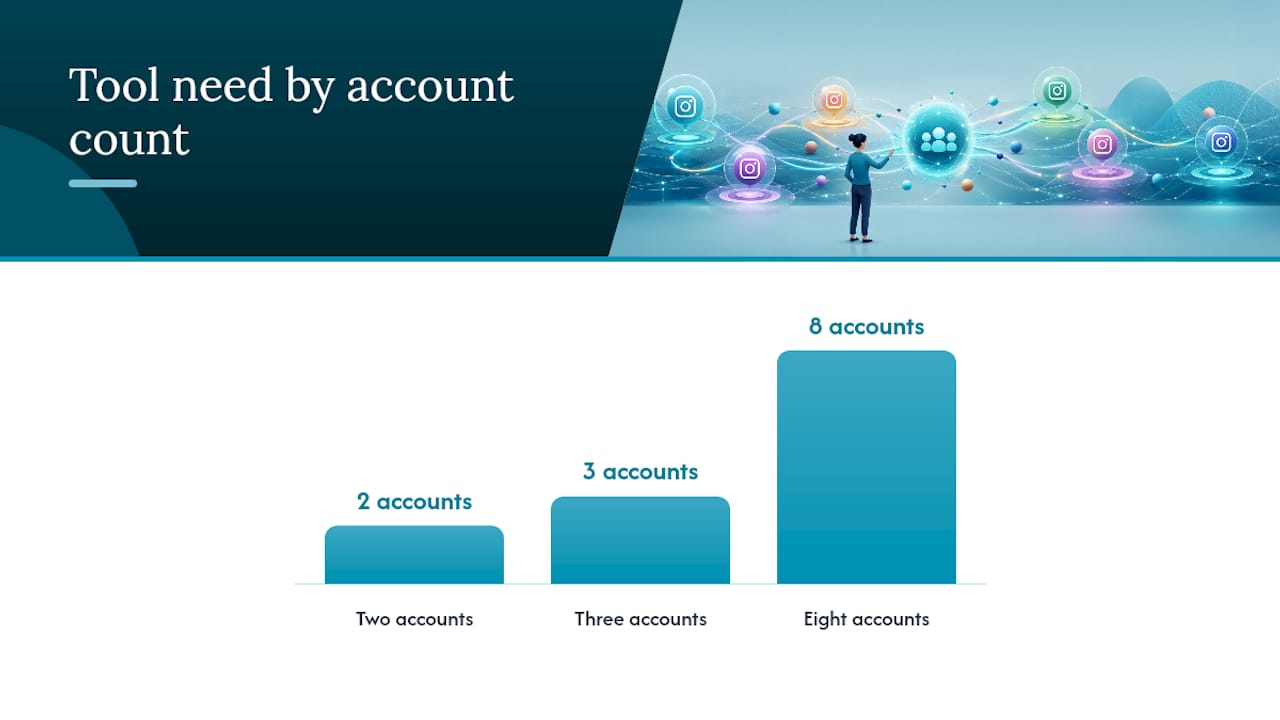
Native switching and a spreadsheet work fine for two or three accounts. Past that, the math changes, and the right tool depends on what's actually slowing you down.
Before picking anything, run your options against a short checklist:
- Does it support genuine scheduling across multiple accounts, not just drafts?
- Does it offer a unified inbox so comments and DMs from every account land in one view?
- Can you set approval steps so nothing publishes without a second set of eyes?
- Does it report analytics per account and in aggregate?
Scheduling tools and dashboards let teams batch and queue posts across accounts while giving you the reporting layer native Instagram simply doesn't offer. That's the trade you're making: you give up the app's simplicity for planning power. If you're running three accounts solo, a scheduler might be overkill. If you're running eight accounts across a team, skipping one is asking for missed posts.
Most scheduling platforms also require converting personal profiles to Business or Creator accounts to unlock API access. Do this before onboarding to a tool, not during. Trying to connect a personal profile mid-setup is a common source of failed integrations.
For agencies, the calculus shifts again toward workspaces. A workspace setup isolates automations, analytics, and access tokens per client account, which prevents one client's data from leaking into another's dashboard view. Workspaces that separate tokens and automations per account save real time for agencies juggling many clients, mostly because nobody has to double check whose numbers they're looking at.
Onboarding to any tool follows roughly the same steps: convert to Business or Creator, connect via the platform's official integration (never share raw passwords with a third party that doesn't use OAuth), set permission levels for each team member, and run one test post per account before trusting the queue with real campaigns.
How Do You Scale Past Five Accounts Without Cross-Contamination?
Once you're past the five-account limit, or you're running a team where multiple people need simultaneous access to different clients, the native app and even most schedulers stop being enough. This is where desktop session strategy matters.
The problem is browser-level, not app-level. A standard browser shares cookies and storage across everything open in it. Log into six Instagram accounts in the same browser window across different tabs, and you're one accidental click away from posting a client's content to the wrong profile, or worse, having Instagram flag the pattern as suspicious activity.
Three approaches solve this at different levels of rigor:
- Browser profiles. Most browsers let you create separate user profiles, each with its own cookies. It's free and works for two or three accounts, but managing five or more profiles manually gets clumsy fast, and switching between them still takes several clicks.
- Containerized sessions. Some browsers support tab-level containers that isolate cookies within a single window. Better than profiles for quick switching, but still limited when you need dozens of persistent, simultaneous logins.
- A dedicated session-isolation extension. Purpose-built tools separate each account's cookies and storage completely, letting you stay logged into many accounts at once in the same browser without any bleed between sessions.
To verify isolation is actually working, run a quick test: log into two accounts in separate sessions, refresh both, and confirm neither login state changes when you interact with the other. If one session logs out or shows the wrong profile data, your isolation setup has a leak worth fixing before you scale further.
Session isolation with separate cookies and storage is one of the more reliable methods for running many concurrent desktop logins without cross-account contamination, which matters most for agencies where a single mixed-up login can mean posting a competitor's content on a client's feed. For teams managing this at real volume, browser setups built specifically for social media management tend to outperform general-purpose profile switching once you're past a handful of accounts.

Pro Tip: Test your session isolation with a low-stakes account first, not a client's primary profile. If something bleeds between sessions, you want to find out on a throwaway test account.
Keeping Multiple Accounts Secure Without Slowing Your Team Down
More accounts means more login credentials floating around, and that's the most common way multi-account operations get compromised. A team password manager solves most of this: unique, generated passwords per account, shared securely with only the people who need access, and rotated the moment someone leaves the team.
Layer in two-factor authentication everywhere it's available, ideally through an authenticator app rather than SMS, since SMS codes can be intercepted more easily. Hardware security keys are worth the cost for agencies managing high-value client accounts.
For teams beyond two or three people, role-based access beats shared logins entirely:
- Use Meta Business Manager to assign specific roles (admin, editor, analyst) instead of sharing one password across a team.
- Keep a running access log noting who has credentials to which account and when access was granted or revoked.
- Build a short incident escalation playbook: who to notify, how fast to change passwords, and how to report a compromised account to Instagram if it happens.
- Review access quarterly and remove anyone who no longer needs it, even if they're still on the team.
The same session-isolation logic that protects against cross-account posting also protects against credential exposure. If a team member's session for one client account gets compromised, isolated sessions mean the damage doesn't spread to every other account logged into the same browser. Cross-platform account governance follows a similar pattern in managing multiple ad accounts safely, where the same access-log and role-based discipline applies.
What Goes Wrong Most Often, and How to Fix It
Posting to the wrong account is the most common failure, and it's almost always a switching mistake, not a tool failure. Check the active account indicator in the composer before you hit publish, every time, no exceptions. Color-coding accounts in your scheduler and running test posts to a private draft first both cut this error down significantly.
- Notification overload: turn off push notifications for every account except the one or two you actively monitor in real time, and route the rest through a unified inbox you check on a schedule instead.
- Failed scheduled posts: this is almost always an OAuth token expiring, or the account not being set to Business or Creator. Reconnect the account in your scheduler and confirm the account type before assuming the tool is broken.
- Repeated sync errors: revoke and reissue the app's access token rather than troubleshooting endlessly. A fresh authorization fixes more scheduling glitches than any settings tweak.
Why Most Teams Underestimate How Fast Multi-Account Chaos Compounds
The mistake most people make with multi-account management is assuming the hard part is the tool. It isn't. The hard part is the moment you go from two accounts to six, because that's when human memory stops being a reliable system for tracking who's logged in where and what got approved by whom.
I've watched teams delay adopting session isolation or a proper workspace until after a mistake happens, usually a client's draft going out on the wrong profile. The fix is almost always cheaper than the mistake. If you're adding a fourth or fifth account and more than one person touches the login, that's the moment to move off manual switching, not after the first incident.
My practical rule: adopt a scheduler when you need consistency across content, and adopt session isolation the moment two people need simultaneous, separate access to the same set of accounts.
— Szabolcs
Scaling Beyond the App Limit With EazySessions
Native switching and even the best scheduler eventually hit a wall when your team needs several people logged into several accounts at once without anyone's session bleeding into another's. That's a browser problem, not a content problem, and it's the one gap most Instagram management advice skips entirely.
A dedicated session-isolation extension creates isolated browser sessions, each with its own cookies and storage, so you can stay logged into as many Instagram accounts as your work requires without one session interfering with another. Agencies managing multiple clients, e-commerce operators running several storefront accounts, and social media managers coordinating across a team benefit most, since they're the ones running into the five-account wall and the shared-login risk first.
If you're past the point where native switching or a single scheduler covers your setup, start with Eazysessions and see how session isolation fits your workflow. Teams running AI-assisted account automation can also look at Eazysessions' MCP integration for controlling multiple sessions programmatically. Check the available plans to find the tier that matches your account count.
Sources
Instagram's own Help Center covers native setup steps. Hopper HQ and Hootsuite detail scheduler workflows and trade-offs. Statista provides platform-scale context.
- Add and switch between multiple Instagram profiles
- How to Manage Multiple Instagram Accounts in 2026
- How to manage multiple Instagram accounts