
The fastest fixes for running several accounts at once are browser profiles, Firefox Multi-Account Containers, per-tab isolation extensions, separate browser apps, or a dedicated session-management tool. Casual users should start with profiles or containers. Agencies, e-commerce teams, and anyone juggling more than a handful of logins outgrow those tools fast and need something built for scale.
TL;DR:
- Browser profiles are quick to set up and ideal for separating a few personal and work accounts but become unwieldy beyond five or six for simultaneous logins.
- Firefox Multi-Account Containers allow running multiple sites with separate cookies inside one window, perfect for managing several accounts on the same site but limited to Firefox and less portable across devices.
- Per-tab isolation extensions create disposable sessions suitable for testing or short-term use but often have limits on persistence and the number of active rules due to browser API constraints.
- Running multiple browsers is the simplest way to manage up to three accounts without configuration, but scaling beyond that makes centralized session-management tools necessary.
- Name and color-code profiles and containers carefully to prevent confusion, and consider a dedicated session management platform for team workflows or high-scale operations.
Table of Contents
- Multiple Accounts Browser Methods Compared at a Glance
- What Are Browser Profiles and How Do You Set Them Up?
- How Do Multi-Account Containers Isolate Sessions?
- Are Per-Tab Isolated Sessions Different From Containers?
- Should You Just Run Multiple Browsers Instead?
- How Do You Pick the Right Multiple Accounts Browser Method?
- What Does Session Isolation Actually Protect You From?
- Troubleshooting Common Multiple Accounts Browser Problems
- Does Running Multiple Profiles Slow Down Your Browser?
- How Should You Name and Organize Your Profiles or Containers?
- How Do You Manage Notifications Across Multiple Accounts?
- How Do You Back Up and Sync Profiles Without Losing Data?
- A Practical Workflow Note From the Field
- Get Started With Eazysessions for Multi-Account Work
- Quick Reference: Official Docs and Setup Guides
- Sources
Multiple Accounts Browser Methods Compared at a Glance
Every method below solves the same problem differently: keeping cookies, cache, and login state from bleeding into each other.
- Browser profiles create a full separate identity, complete with its own bookmarks and extensions. Setup takes seconds, but juggling ten profiles across ten windows gets messy fast.
- Container tabs (Firefox Multi-Account Containers) isolate cookies per tab inside one window. Great for same-site multi-login, but they're Firefox-specific and don't sync every setting across devices.
- Per-tab isolation extensions spin up virtual cookie jars on demand, ideal for short, disposable sessions.
- Multiple browser apps (Chrome plus Firefox plus Edge) work instantly with zero configuration but scale poorly past three or four accounts.
- Desktop/CLI multi-instance tricks let you run several copies of one app, useful for locked-to-one-account desktop software.
- Session-management tools like Eazysessions centralize isolation, storage, and team access in one dashboard, trading a subscription for real scale.
What Are Browser Profiles and How Do You Set Them Up?
Chrome, Opera GX, and Edge all support the same core idea: each profile keeps its own bookmarks, browsing history, saved passwords, and cookies completely separate from every other profile on the machine. According to Google's own support documentation, you can create, switch between, and delete profiles without touching your other logins at all.
Setting one up takes three steps:
- Click your profile icon in the top corner of Chrome, then select "Add" to create a new profile.
- Sign in with a Google Account, or choose to browse locally without signing in at all.
- Create a desktop shortcut for the new profile and toggle "Show on startup" if you want it to launch automatically.
Profiles work well for separating a personal identity from a work one, or for protecting a shared family computer where everyone needs their own space. They start to break down once you need several logins on the same website simultaneously. A separate window per account gets unwieldy past four or five.
Pro Tip: Name each profile after the account it holds, not a generic label like "Work 2." Six months from now, "Client Ads Account" beats "Profile 3" every time you're hunting for the right window.
How Do Multi-Account Containers Isolate Sessions?
Container tabs solve the exact problem profiles can't: running multiple accounts on the same site inside a single browser window. Firefox Multi-Account Containers gives each container tab its own cookie and local storage namespace, so a site literally cannot tell that two of its tabs belong to the same browser.
Getting started takes four steps:
- Install the Multi-Account Containers extension from Firefox's add-on store.
- Create named containers for each account, like "Client A" or "Personal."
- Open a new container tab and log in as usual. The site sees a fresh session every time.
- Optionally set per-domain rules so a specific site always opens in the correct container, or long-press the new tab button to pick one manually.
Containers shine when you're running four Instagram accounts or a dozen ad accounts side by side in one browser window. The trade-off is real: this remains largely a Firefox feature, and the isolation doesn't carry over cleanly if you switch to Chrome on another device. Equivalent extensions exist elsewhere, but implementation and reliability vary by browser.
Are Per-Tab Isolated Sessions Different From Containers?
They're cousins, not twins. Where containers assign a persistent identity to a tab, per-tab isolation extensions often create disposable, virtual cookie jars, sometimes called ephemeral sessions, that exist only as long as the tab is open. Some tools let you right-click a link and choose "open in isolated tab," with a small badge marking which sessions are separated from your main browsing.
- Setup usually means installing an extension, then choosing between a persistent isolated tab or a one-time ephemeral one.
- Persistence across browser restarts varies by tool. Some extensions carry the session forward; many wipe it on close by design.
- Chrome's extension APIs impose real limits here. Manifest V3 changes and session rule caps mean some isolation extensions can only track a fixed number of active rules at once, according to notes from community-built multi-login projects.
- Chrome Web Store listings for these tools typically advertise the same core pitch: multiple logins to the same site in one window, without a separate app or profile.
Pick this method for testing, quick one-off logins, or when you want a same-site multi-login inside one window but don't need the session to survive a restart.
Should You Just Run Multiple Browsers Instead?
Sometimes the simplest fix wins. Log into Instagram in Chrome, a second account in Firefox, and a third in Edge, and you've got three parallel sessions with zero configuration. Pin each browser to your taskbar or dock and switching takes one click.
- Separate browser apps work immediately, need no extensions, and are the lowest-friction option for two or three accounts.
- Desktop and CLI multi-instance tricks solve a narrower problem: apps that lock you to a single account by design. Community tools like ai-multi-instance launch each copy with its own user-data directory, often using a flag like
--user-data-dir, so every instance keeps a distinct cookie store. - Some platforms sidestep the whole issue with native account switching, letting you stay signed into multiple accounts inside one app session. That's the cleanest fix when it's available.
None of this scales past a handful of accounts. Managing fifteen separate browser installs is its own full-time job.
How Do You Pick the Right Multiple Accounts Browser Method?
Run through six questions before committing to a method:
- Do you need several logins on the same site at once? If yes, skip profiles and go straight to containers or a session tool.
- How many accounts total? Under five, almost anything works. Past ten, only a centralized tool holds up.
- Are you managing this alone, or does a team need shared access?
- Do you need automation or AI agents to control sessions independently?
- What's your actual security requirement: casual separation, or audit-grade isolation for client data?
- What's your budget and appetite for a monthly tool versus free browser features?
Map the answers: light personal use points to profiles or containers, testing points to per-tab extensions, and team-scale or automated workflows point toward a dedicated tool like Eazysessions.
Pro Tip: Before migrating a real workflow onto any new tool, run it in trial with your two most important accounts first. If isolation holds under real use for a week, it'll hold for fifty accounts.
What Does Session Isolation Actually Protect You From?
Isolation stops cookies from leaking between logins and prevents the accidental cross-posting or cross-login that happens when two accounts share one cookie jar. That's the whole job, and it does that job well.
What it doesn't touch is browser fingerprinting or OS-level data exposure. A site can still detect certain hardware and configuration signals across separate profiles or containers, and none of these methods encrypt data sitting on your hard drive.
- Use unique, strong passwords per account, managed through a password manager rather than memory.
- Audit extension permissions regularly. A per-tab isolation tool with broad permissions can see more than it needs to.
- Keep your browser and operating system updated. Isolation features rely on browser security patches to hold up.
- For regulated workflows, client data, or compliance requirements, centralized controls matter more than any single browser trick. That's when a paid session-management platform earns its cost.
Institutional requirements often demand audit trails and access logs that no free browser feature provides on its own.
Troubleshooting Common Multiple Accounts Browser Problems
Login conflicts are the most common headache. You think you're logged into Account B, but the site keeps bouncing you back to Account A. This almost always means the two accounts share a cookie store, either because you're using the same profile, the same container, or a browser tab that isn't actually isolated the way you assumed.

Cookie and session bleed shows up in subtler ways too. You'll see an ad account dashboard flash the wrong client name for half a second, or a social platform serve you notifications for an account you didn't mean to check. That's a sign your isolation method has a leak, usually because an extension with broad permissions is reading across contexts it shouldn't touch.
A few fixes handle most of these cases:
- Clear cookies for the specific profile or container, not your whole browser, then log back in fresh.
- Check whether a domain rule in your container extension is misconfigured and routing the wrong site into the wrong container.
- Disable extensions one at a time if a session keeps collapsing. A conflicting extension is often the culprit, not the isolation method itself.
- If a per-tab isolation tool has hit its rule cap under Manifest V3 constraints, some sessions may silently stop isolating. Restart the extension or reduce active rules.
- For persistent cross-account chaos across many logins, that's usually the signal to move from ad hoc fixes to a dedicated session tool built to prevent the leak in the first place.
Most login conflicts trace back to one root cause: two accounts sharing storage they shouldn't.
Does Running Multiple Profiles Slow Down Your Browser?
Yes, and the effect compounds faster than most people expect. Each open profile or container tab keeps its own memory footprint, cache, and background processes running. Five profiles open simultaneously can easily double or triple your browser's RAM usage compared to a single session.
Containers are lighter than full profiles since they share the underlying browser process, but a window full of a dozen open container tabs still adds up. Extensions handling per-tab isolation add their own overhead too, checking every request against domain rules before letting it through.
The practical impact depends on your hardware. A modern machine with 16GB of RAM or more handles four or five active profiles without much strain. Older laptops with 8GB or less start showing real slowdowns, tab freezes, and slower page loads, once you're past two or three simultaneous profiles.
A few habits keep performance manageable:
- Close profiles you're not actively using rather than leaving ten windows open in the background.
- Limit extensions per profile. Every extension loaded runs in every profile, multiplying the memory cost.
- Restart your browser periodically. Long-running sessions with many profiles tend to accumulate memory leaks over days of continuous use.
- If you're running a dozen or more accounts daily, a centralized session tool that manages isolation server-side, rather than spinning up full local browser processes for each account, avoids this scaling problem entirely.
Performance is the quiet reason most heavy multi-account users eventually move off pure browser-native methods.
How Should You Name and Organize Your Profiles or Containers?
Confusion is the real cost of running multiple accounts, not the setup. Six months in, a wall of unlabeled tabs and profiles turns a five-second task into a five-minute hunt for the right window.
Name every profile or container after the account it actually holds, never a generic placeholder. "Acme Corp Ads" beats "Work Profile 2" every single time you need to find it fast. If you manage client accounts, include the client name directly in the label so you're never guessing which window belongs to which contract.
Color coding helps more than most people expect. Firefox's container extension lets you assign a color and icon to each container, and Chrome profiles support custom avatars and colors too. Assign a consistent color scheme, blue for personal, green for client work, red for testing accounts, and your brain will start recognizing the right window before you even read the label.
A few more habits pay off over time:
- Group related accounts with a shared naming prefix, like "Client_Acme_Ads" and "Client_Acme_Social," so they sort together alphabetically.
- Delete profiles and containers you're no longer using. Clutter accumulates fast and makes the active ones harder to find.
- Keep a simple external log, even a basic spreadsheet, mapping each profile name to its actual account and purpose, especially if a team shares access.
- Review your naming system quarterly. What made sense with three accounts often stops making sense at fifteen.
Good naming is the cheapest fix in this entire guide, and the one most people skip until the confusion actually costs them time.
How Do You Manage Notifications Across Multiple Accounts?
Notification overload is the most underrated problem in multi-account work. Five active profiles each pinging their own alerts turns your taskbar into constant noise, and important messages get buried under routine ones within minutes.
Start by muting notifications at the profile or container level for anything that isn't time-sensitive. Most browsers let you set site-specific notification permissions per profile, so a client's ad platform can stay silent while your primary account still gets alerts. Chrome and Firefox both handle this through their site settings menus, applied independently per profile.
For accounts you check on a schedule rather than in real time, disable push notifications entirely and rely on manually checking during set windows during your day. This single change eliminates most of the interruption without costing you any actual information.
Batching helps too. Rather than reacting to alerts as they land across a dozen tabs, check each profile at set intervals, say, once every hour, and treat notifications as a queue rather than a constant stream. This keeps context switching to a minimum, which matters more than people realize when you're moving between accounts that require different tones, different client expectations, or different login credentials.
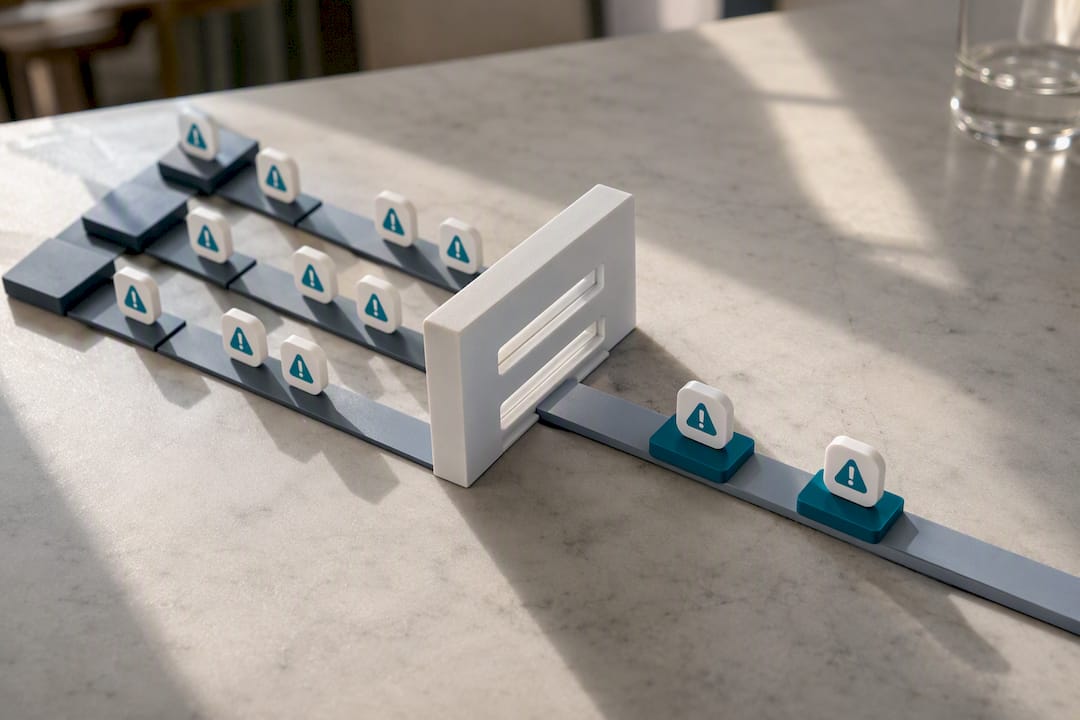
If you're managing accounts for a team, centralize alerting where possible. A shared dashboard that surfaces only the notifications that matter across all accounts beats every team member independently drowning in the same noise. This is one area where a dedicated session-management platform, built around unified access rather than a stack of separate browser windows, tends to outperform ad hoc browser settings entirely.
How Do You Back Up and Sync Profiles Without Losing Data?
Losing a profile's saved logins, history, and settings because of a browser reinstall or a crashed hard drive is more common than it should be, and entirely preventable.
Chrome and Firefox both offer built-in sync tied to an account, which backs up bookmarks, saved passwords, and extensions to the cloud automatically. The catch: syncing multiple profiles under one account can blur the separation you built those profiles to create in the first place. Keep sync tied to genuinely separate accounts if you want the isolation to survive a device switch.
Container data in Firefox's Multi-Account Containers extension doesn't sync across devices by default. This is one of the trade-offs of using containers over full profiles. If you switch computers, you'll need to recreate your container setup manually unless you're exporting settings by hand.
A few backup habits close most of the gap:
- Export bookmarks and saved settings periodically as a manual backup, even with sync enabled.
- Keep a written record of which container or profile maps to which account, so a rebuild doesn't require guesswork.
- For teams, avoid relying on any single person's local browser as the sole record of account access. Centralized, cloud-stored session management removes that single point of failure entirely.
- Before any major browser update or OS migration, confirm your sync settings are active and current for every profile you can't afford to lose.
Data loss almost always happens at the worst possible moment. A five-minute backup habit now saves a much worse afternoon later.
A Practical Workflow Note From the Field
Most people over-engineer this early on, installing five isolation extensions before they've even mapped out which accounts actually conflict with each other. Start narrower: color-code your two or three most-used profiles first, get that habit solid, then expand.
The single biggest mistake is granting broad permissions to every isolation extension you try. Read what access each one actually requests before installing it. A tool that only needs to isolate cookies has no business asking for full browsing history access.
— Szabolcs
Get Started With Eazysessions for Multi-Account Work
Eazysessions is the upgrade path once profiles, containers, and browser extensions stop scaling for your actual workload. Instead of juggling windows, Eazysessions gives every account its own isolated session with dedicated cookies and storage, so cross-account interference simply can't happen, no matter how many client or brand accounts your team runs.
What that actually looks like in practice:
- Per-account isolation that keeps each session's cookies, storage, and login state completely separate.
- Secure storage built for teams handling sensitive client data, not just personal browsing.
- MCP integration, letting AI agents control isolated sessions directly for automated workflows, detailed on the Eazysessions MCP page.
- Team management features that centralize access instead of scattering it across everyone's personal browser.
The best way to evaluate it: create two test sessions, log into two different accounts on the same platform, and confirm neither session ever sees the other's data. Start that test on the Eazysessions product page, and if isolation holds under your real workflow, scaling to your full account list is the easy part.
Quick Reference: Official Docs and Setup Guides
For exact setup steps, Google's Chrome profile guide covers creating and switching profiles. For container isolation, the Firefox Multi-Account Containers page has installation and usage details. For a platform-specific workflow, see the guide on managing multiple Google Ads accounts in one browser.
Sources
- Firefox Multi-Account Containers – Get this Extension for 🦊 Firefox (en-US)
- Manage Chrome with multiple profiles - Computer
- Use multiple accounts with account switching